
Customise
Character and Mix
How the Character workspace builds a character, and how Mix blends several characters into one.
Workspaces
Enfigure has three workspaces, shown in the mode bar: Editor, Character and Library.
Character is where you build a character: its body, eyes, mouth, nails, lashes and brows, skin, parts and outfit.
Mix
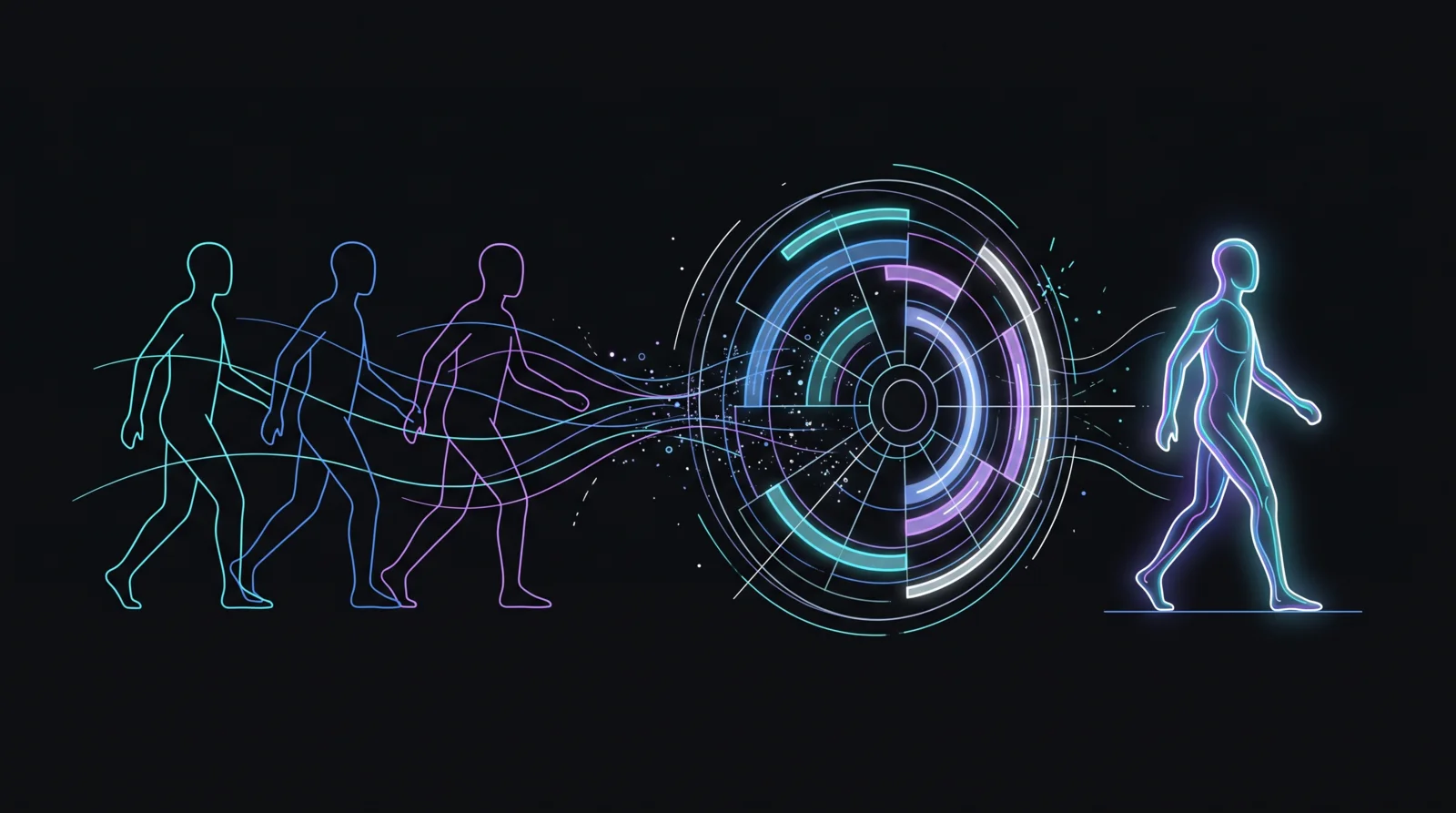
Mix blends several source characters into one new body.
- Sources. Add the characters you want to blend. The Body section in the left column has an Add sources button and stays collapsed until you open it.
- The wheel. Each source sits on the mixer wheel. Move a source to change how much it contributes. The blend field shows the result as you go.
- Gallery. The Mix tab’s Characters gallery applies a whole character at once, if you would rather start from one that already exists.
- Randomise, Reset and Lock. Every section header has these. Randomise gives a new result, and it advances a seed, so a result you like can be repeated. Reset puts the section back as it was.
Saving a mix
A mix is only a recipe until you save it. The footer gives you three ways to keep the result:
- Save mix (on the wheel) files the mix in the Library, so you can reuse it.
- Save to Library bakes the mix and saves it as a new Library character.
- Save as preset keeps the body, look and parts as a character you can pick again later.
Open in Editor bakes the mix and opens the result in the Editor, where you can pose, export and check it.
If a button is greyed out, hover over it: it says why.
Where to go next
- Character mode: every section of the Character workspace, one by one.
- Other formats and targets: what a finished character exports as.